The Short Answer
To print a Word document as a booklet, set the document to a booklet layout before printing: go to Word’s margin settings, choose Book fold, set the paper orientation to landscape, check your page count, then print double-sided with short-edge binding if your printer supports duplex printing.
That works well for small booklets, event programs, zines, handouts, and drafts. For a book you plan to upload to KDP, IngramSpark, or a commercial printer, you usually should not send a raw Word booklet file. Instead, format the manuscript as a print-ready PDF with the correct trim size, margins, page numbering, and embedded fonts.
DocToPrint is built for that second use case: upload a DOCX manuscript, choose print settings such as trim size, fonts, paper color, chapter style, and page number position, then generate a print-compliant PDF interior.
If you still need the folded layout workflow, use how to format a booklet in Word before you reach the printer settings.
What “Booklet” Means in Word
A booklet is not just a document with smaller pages. It uses imposition, which means pages are rearranged so they appear in the correct order after sheets are folded and stacked.
For example, an 8-page booklet printed on two sheets might place page 8 beside page 1 on the first side, then page 2 beside page 7 on the reverse. That looks strange on screen but becomes correct once folded.
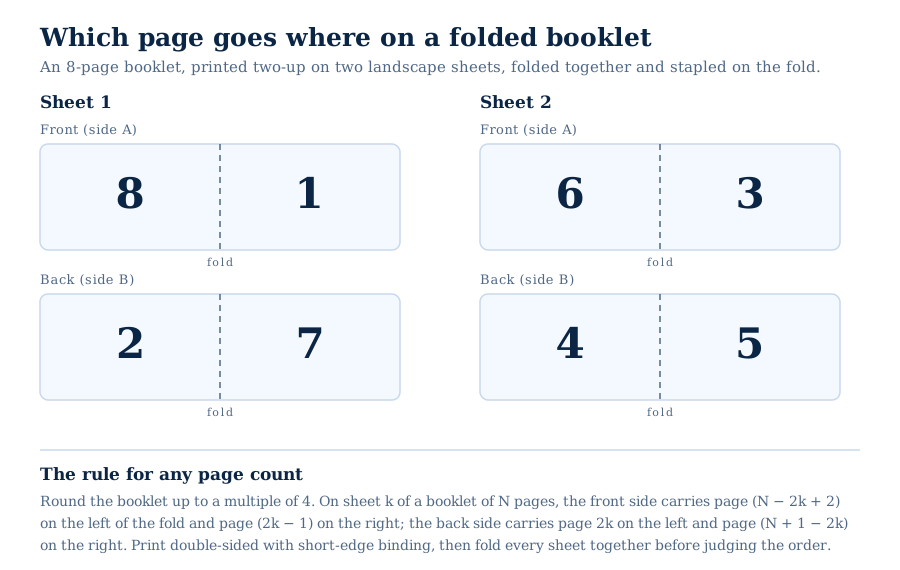
This is why many people searching “how do I print a Word document as a booklet” run into trouble: they expect page 1, page 2, page 3 order in the print preview, but booklet printing deliberately changes the sequence.
Method 1: Print a Simple Booklet Directly from Word
Use this method when you want a folded booklet from a home or office printer.
1. Finish the document before changing layout
Do your writing, editing, headings, images, and page breaks first. Booklet layout changes the way pages flow, so switching too early can make normal editing awkward.
Before you start, save a copy of the file. That gives you a clean version to return to if the booklet layout creates spacing or pagination problems.
2. Set Word to Book Fold
In Microsoft Word:
- Open Layout or Page Layout.
- Select Margins.
- Choose Custom Margins.
- Under Multiple pages, select Book fold.
- Word will switch the document to landscape orientation and split each sheet into two booklet pages.
You can usually leave “Sheets per booklet” set to All for a small booklet. For larger booklets, you may need to print in smaller sections, especially if folding many sheets together would make the spine bulky.
3. Check margins and gutter
The gutter is the extra inside margin near the fold. Without enough gutter, text can disappear into the crease.
For a small folded booklet, start with:
- Inside margin: 0.5 to 0.75 inches
- Outside margin: 0.5 inches
- Gutter: 0.15 to 0.25 inches
For anything more polished, print a sample before committing to a full run. Different printers pull paper slightly differently, and a margin that looks fine on screen may feel tight after folding.
4. Make the page count divisible by 4
Booklets are made from folded sheets, and each folded sheet creates four pages. That means your booklet should end at 4, 8, 12, 16, 20 pages, and so on.
If your document ends on page 14, add two blank pages or useful back matter such as notes, contact information, references, or a “more resources” page. A blank final page is acceptable, but a booklet often feels more intentional when the space is used.
5. Print double-sided with the correct binding edge
When printing, choose duplex printing if your printer supports it. The key setting is usually called one of these:
- Print on both sides
- Flip on short edge
- Short-edge binding
For booklet printing, short-edge binding is usually the correct choice because the paper is in landscape orientation. If your printer uses different wording, print pages 1–4 as a test before printing the full booklet.
6. Fold, stack, and trim if needed
Once printed, fold each sheet cleanly down the center. For a small booklet, you can staple along the fold with a long-arm stapler. For a sharper finish, use a print shop that can saddle-stitch and trim the outer edge.
If the outer pages stick out farther than the inner pages, that is normal on thicker folded booklets. Professional printers compensate for this with creep adjustment and trimming.
Method 2: Print a Word Document in Booklet Form from a PDF
If you are not satisfied with Word’s print output, convert the file to PDF first, then use your PDF viewer’s booklet print option.
This often gives more predictable results because the PDF freezes fonts, spacing, images, and page breaks before the printer driver rearranges the pages.
A common workflow is:
- Format the document in Word.
- Export or save as PDF.
- Open the PDF in Adobe Acrobat Reader or another PDF viewer.
- Choose Booklet in the print dialog.
- Select both sides, correct binding, and page range.
- Print a short test before the full run.
This is also a better choice when your Word document contains images, tables, custom fonts, or carefully placed page breaks. For a deeper walkthrough, see How to Convert DOCX to PDF for Printing.
When Word’s Booklet Setting Is Not Enough
Word’s booklet feature is useful, but it is not the same as professional book formatting. It does not solve every issue involved in making a print-ready interior.
For example, a printer or publishing platform may require:
- A specific trim size, such as 5 x 8, 5.5 x 8.5, or 6 x 9 inches
- Proper inside and outside margins
- Embedded fonts
- No accidental blank pages in the wrong place
- Correct front matter and back matter order
- Chapter starts on the right-hand page
- Consistent page numbering
- PDF export settings that preserve print quality
If you are preparing a book for KDP or IngramSpark, the better question is often not “how do you print a Word document as a booklet?” It is “how do I turn my Word manuscript into a print-ready interior PDF?”
That is where a tool like DocToPrint is useful. Instead of relying on Word’s booklet mode, you upload your DOCX, review detected chapters and front matter, choose trim size and styling, generate a free watermarked preview, then spend a credit only when you are ready to download the clean PDF.
For manuscript setup before conversion, read How to Format a Word Document for Book Printing. For final PDF checks, use How to Make a PDF Print Ready.
Home Booklet vs. Print-Ready Book Interior
The right workflow depends on the final destination.
Use Word booklet printing when:
- You are printing a small handout, program, workbook sample, or internal document.
- You control the printer and paper.
- A slightly handmade finish is acceptable.
- You can test and adjust printer settings yourself.
Use a print-ready PDF workflow when:
- You are publishing a paperback book.
- You are uploading to KDP, IngramSpark, or a commercial printer.
- You need consistent margins, fonts, and page numbering.
- You want the file to pass print checks without trial and error.
- You want a professional interior rather than a folded office booklet.
The tradeoff is control versus convenience. Word gives you direct control but also makes you responsible for layout, imposition, print driver quirks, and testing. A PDF-first workflow removes many of those variables, especially when the final output needs to meet a printer’s technical requirements.
Common Problems and Fixes
Pages print in the wrong order
This is usually normal booklet imposition. Fold the pages before judging the order. If the booklet is still wrong after folding, check whether both Word and the printer driver are trying to impose the booklet. Use one booklet setting, not two.
The back side is upside down
Change the duplex setting. For booklet printing from landscape paper, short-edge binding is commonly correct. Run a 4-page test each time you change the setting.
Text is too close to the fold
Increase the gutter or inside margin. For thick booklets, you may also need to reduce the number of sheets per folded section.
The final booklet has blank pages
Check whether your page count is divisible by 4. Blank pages at the end are common when the document ends on an uneven booklet signature.
Images shift after changing to Book Fold
Book fold changes the available page area. Images anchored to paragraphs may move. Resize large images, avoid text wrapping where possible, and export a PDF once the layout looks right.
Practical Recommendation
If you need a quick folded booklet, Word’s Book fold setting is the fastest route. Keep the page count divisible by 4, use short-edge duplex printing, and test the first four pages before printing the full document.
If you are making a book, workbook, or anything you plan to sell or distribute professionally, do not treat Word’s booklet printing as the final production step. Create a print-ready PDF instead, then let the printer or publishing platform handle the physical printing. That gives you a more predictable file, cleaner typography, and fewer surprises at proof stage.
If your finished PDF will also be read on screen, it is worth preserving navigation inside the file itself — see our guide to printing PDFs with bookmarks.

